
For Windows
Step 1: Install VirtualBox
First, install VirtualBox — this is the software that runs the virtual machine.
Link: virtualbox.org/wiki/Downloads
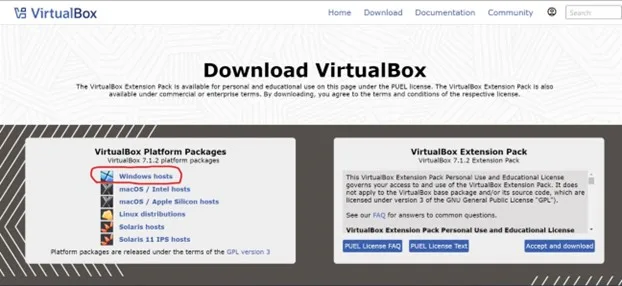
Click the download button circled above. Once installed, double-click the file shown below.
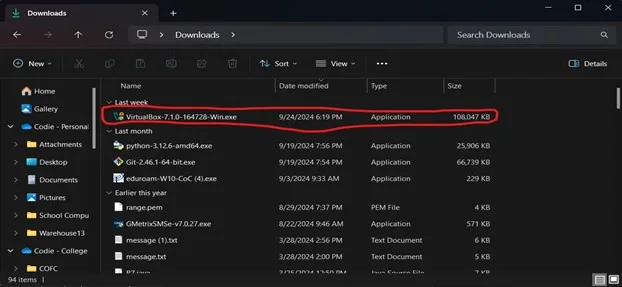
Then follow all the prompts VirtualBox gives you.
Step 2: Install 7-Zip
We need 7-Zip to extract a download that was compressed using it — same idea as a regular zip folder, just a different tool.
Link: 7-zip.org
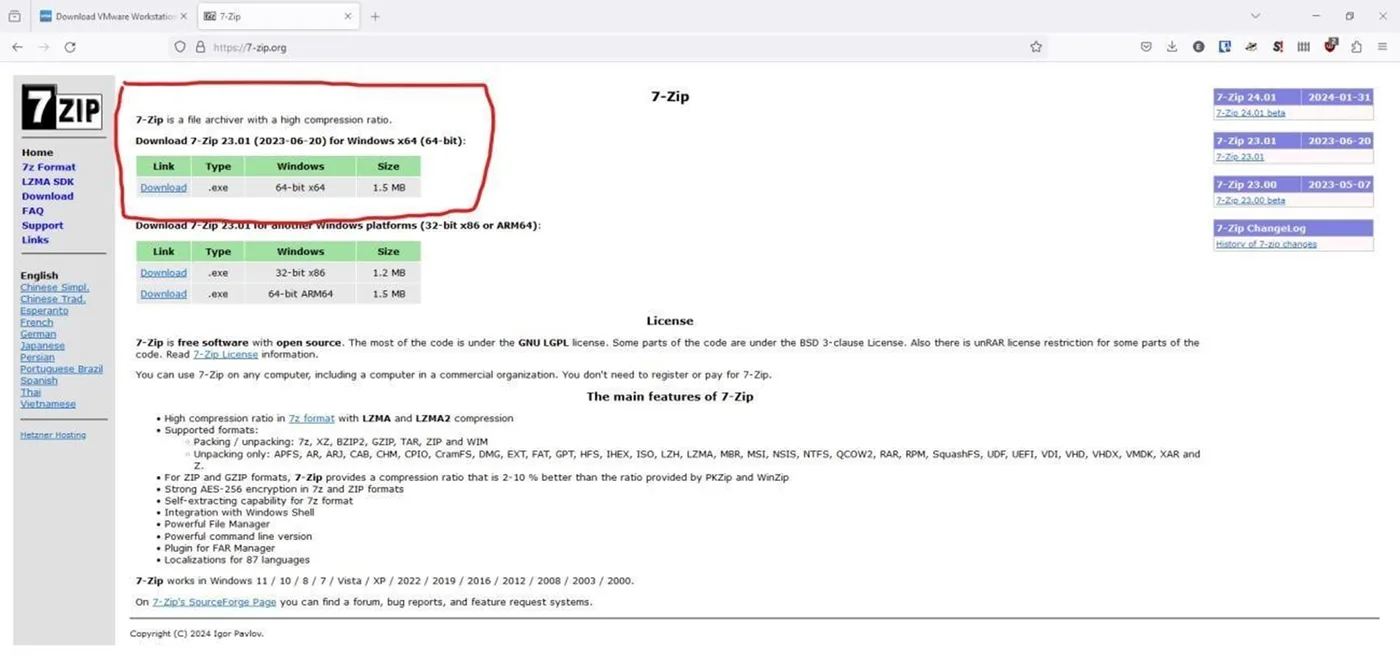
Double-click the 7zr.exe file and follow the prompts to install 7-Zip.
Step 3: Install the Kali Linux prebuilt virtual machine
Next we’ll download the actual operating system: a version of Debian Linux built specifically for cybersecurity, preinstalled with many of the tools we use in the club and in competitions.
Link: kali.org/get-kali/#kali-platforms
Go to the link and select “Virtual Machines,” circled below:
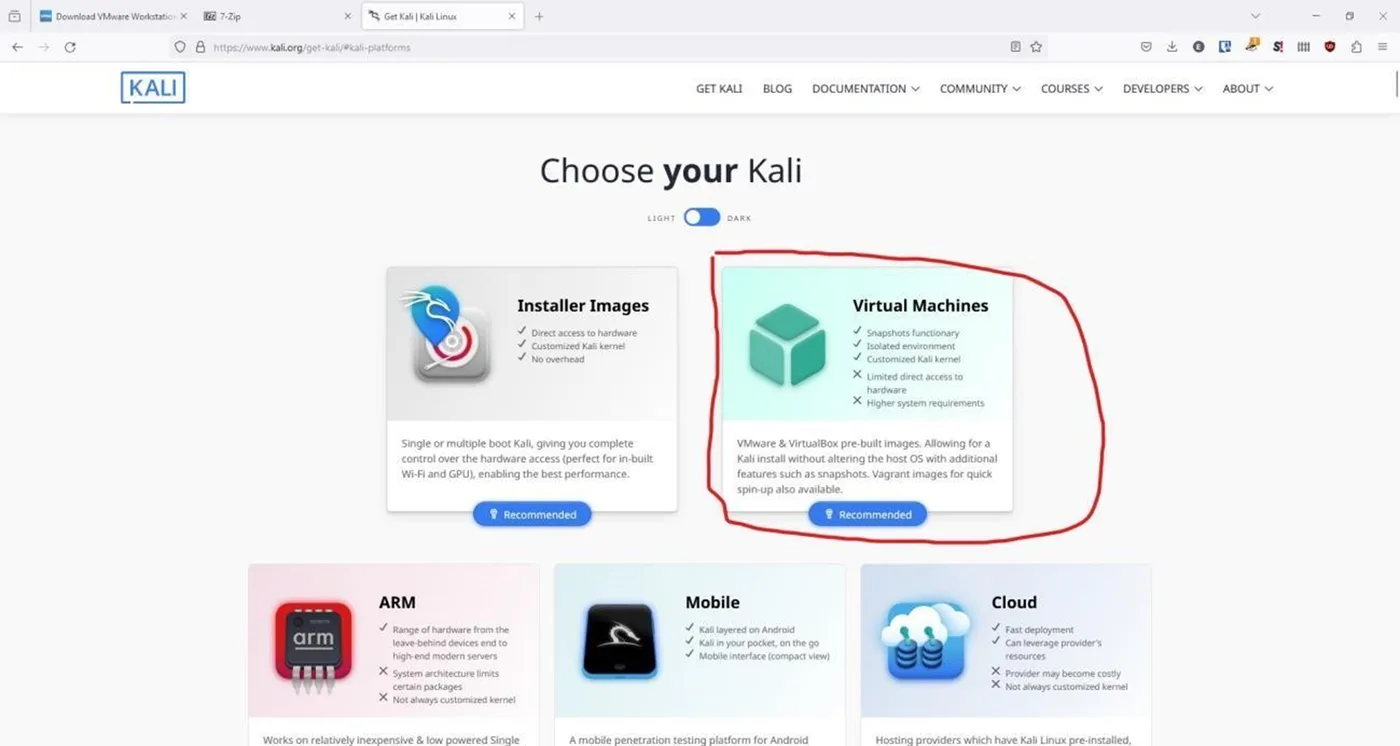
From there, click the download corresponding to VirtualBox, circled below:
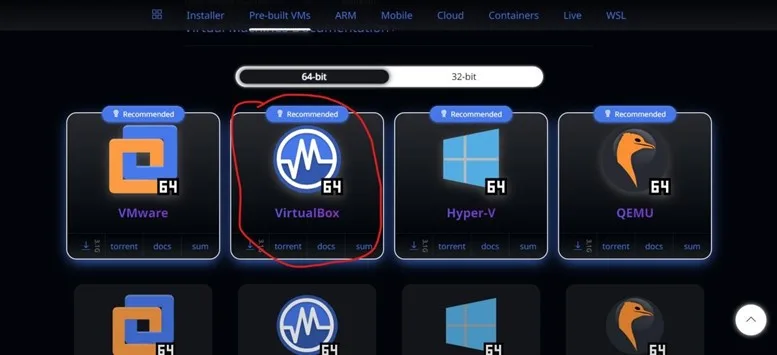
This starts downloading Kali — around 3GB, so it’ll take a while depending on your connection. Once it’s done, double-check your download looks like the one below. If it doesn’t match, you may have grabbed the wrong file.
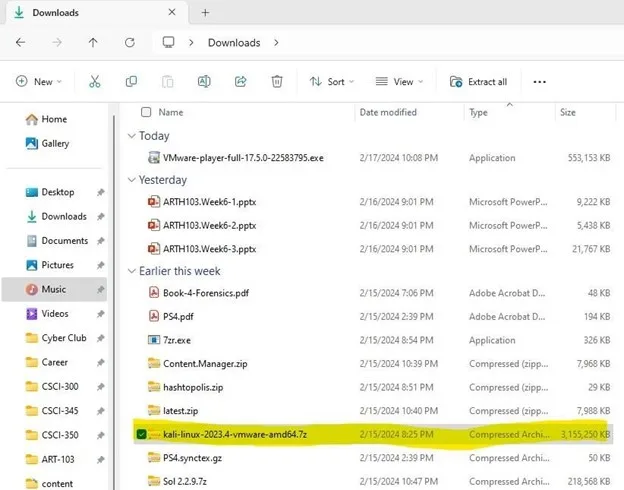
Once it matches, you’re good to go — we’ll finish the rest of the setup together at a meeting. Questions in the meantime? Ask in Discord.